
Setup a VPN Connection into a Private ROSA Cluster with OpenVPN
This content is authored by Red Hat experts, but has not yet been tested on every supported configuration. This guide has been validated on OpenShift 4.21. Operator CRD names, API versions, and console paths may differ on other versions.
Red Hat OpenShift on AWS (ROSA) clusters configured with private deployment provide enhanced security by restricting API and application endpoints to private network access only. However, this creates a challenge for cluster administrators and developers who need to access the cluster from outside the AWS VPC.
Traditional approaches require setting up and maintaining bastion hosts (jump boxes) or configuring complex VPC peering arrangements. This guide demonstrates a more streamlined alternative using AWS Client VPN, which provides secure, certificate-based access to your private ROSA cluster without the operational overhead of managing additional infrastructure. With this approach, you can connect directly to your cluster using standard VPN client software on your local machine.
Prerequisites
- A private ROSA cluster:
- AWS CLI configured with appropriate credentials
jqcommand-line JSON processorrosaCLI tool- OpenVPN-compatible VPN client software:
- macOS: Viscosity , Tunnelblick , or AWS VPN Client
- Linux: OpenVPN or AWS VPN Client
- Windows: OpenVPN GUI or AWS VPN Client
Set Envrionment Variables
Start by setting environment variables that we will use to setup the VPN connection
Create certificates to use for your VPN Connection
There are many ways and methods to create certificates for VPN, the guide below is one of the ways that works well. Note, that whatever method you use, make sure it supports “X509v3 Extended Key Usage”.
-
Clone OpenVPN/easy-rsa
-
Change to the easyrsa directory
-
Initialize the PKI
-
Edit certificate parameters
Copy pki/vars.example as pki/vars, uncomment and edit the copied template with your values
Uncomment (remove the #) the folowing field
-
Create the CA:
-
Generate the Server Certificate and Key
The server certificate must include a Subject Alternative Name (SAN) for AWS Certificate Manager import to succeed.
-
Generate Diffie-Hellman (DH) parameters
-
Generate client credentials
Import certficates into AWS Certificate Manager
-
Import the server certificate
- Before running the below commands, make sure you are still in the pki directory under the easyrsa3 directory
-
Import the client certificate
Create a Client VPN Endpoint
-
Retrieve the VPN Client ID
-
Associate each private subnet with the client VPN endpoint
-
Wait for the VPN endpoint to become available
The VPN endpoint takes several minutes to become available after subnet association.
-
Add an ingress authorization rule to a Client VPN endpoint
Configure Security Groups for Private ROSA HCP Clusters
If you are connecting to a private ROSA HCP cluster, you must configure the VPC endpoint security group to allow traffic from VPN clients. Public ROSA clusters or ROSA Classic clusters may not require this step.
-
Get the VPC endpoint ID for the cluster API
-
Get the security group attached to the VPC endpoint
-
Add ingress rule to allow VPN client traffic to the API endpoint
Configure your OpenVPN Client
-
Download the VPN Client Configuration
-
Run the following commands to add the certificates created in the first step to the VPN Configuration file.
- note: make sure you are still in the easy rsa / pki directory.
-
Add DNS Configuration to VPN client config
To resolve the ROSA cluster domain names, you need to configure DNS settings in your VPN client. The DNS server will be the x.x.x.2 address of your VPC CIDR. For example, if your VPC CIDR is 10.66.0.0/16 then your DNS server will be 10.66.0.2
You can find the VPC CIDR with this command:
You can find the ROSA base domain with this command:
Add these DNS settings to your VPN configuration file:
-
Import the client-config.ovpn file into your VPN Software
- Mac users - just double click the client-config.ovpn and it will be imported automatically into your VPN client.
-
Configure DNS Settings in VPN Client (macOS with Viscosity or Tunnelblick)
After importing the configuration, you may need to manually configure DNS settings in your VPN client:
Option 1: Full DNS Mode (Recommended for simplicity)
This forces all DNS queries through the VPN DNS server while connected:
- Edit the VPN connection
- Go to the Networking tab
- Set DNS Mode to “Full”
- Set DNS Servers to the DNS server IP (e.g.,
10.40.0.2) - Remove any entries in DNS Domains (leave blank for Full mode)
- Save and reconnect
Option 2: Split DNS Mode (Advanced)
This only routes specific domain queries through the VPN DNS:
- Edit the VPN connection
- Go to the Networking tab
- Set DNS Mode to “Split DNS”
- Set DNS Servers to the DNS server IP (e.g.,
10.40.0.2) - Set DNS Domains to your ROSA domain and
openshiftapps.com(e.g.,qftf.p3.openshiftapps.com, openshiftapps.com) - Save and reconnect
Note: If Split DNS mode does not work (DNS queries still go to your local DNS server), use Full DNS mode instead. macOS DNS resolver priority can sometimes prevent split DNS from working correctly.
After connecting, verify DNS resolution:
You should see the DNS server as your VPC DNS (e.g.,
10.40.0.2) and the API endpoint should resolve to a private IP within your VPC CIDR. -
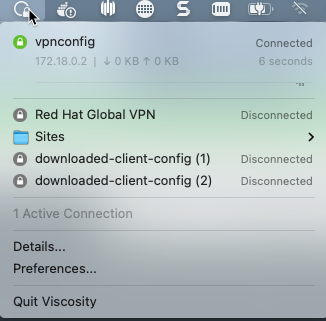
Connect your VPN
Verify VPN Connection
After connecting to the VPN, verify that you can access the cluster:
-
Check DNS resolution
You should see the DNS server as your VPC DNS (e.g.,
10.40.0.2) and the API endpoint should resolve to a private IP within your VPC CIDR. -
Test connectivity to the API endpoint
You should see
okin the response. -
Log into the cluster
You will be prompted for your cluster credentials.
Troubleshooting
VPN connects but DNS doesn’t resolve
Symptoms: VPN connection succeeds but nslookup or oc login fails with “no such host” errors.
Solutions:
- macOS users: Ensure DNS mode is set to “Full” in your VPN client settings (see DNS configuration section above)
- Flush DNS cache:
- Verify VPN pushed DNS settings:
10.40.0.2) listed.
Can’t reach cluster API after connecting
Symptoms: DNS resolves correctly but curl or oc login times out or fails to connect.
Solutions:
-
Verify VPN endpoint security group allows traffic from VPN client CIDR:
-
For private ROSA HCP clusters, check VPC endpoint security group (see “Configure Security Groups for Private ROSA HCP Clusters” section)
-
Test direct IP connectivity:
Certificate import fails
Symptoms: aws acm import-certificate fails with “Certificate does not have a domain” or certificate/key mismatch errors.
Solutions:
-
Ensure server certificate has Subject Alternative Name:
You should see
DNS:vpn.<cluster-name>.localin the output. -
Verify certificate and key match:
Both commands should output the same MD5 hash.
-
Verify certificate chain is complete:
Both should output
<cert>: OK
VPN client shows “TLS key negotiation failed”
Symptoms: VPN client fails to connect with TLS handshake errors.
Solutions:
- Verify the client configuration file has all three certificate sections (
<ca>,<cert>,<key>) - Ensure you imported the correct client certificate and key (not the server certificate)
- Check that certificate and key are in PEM format (text-based, not binary DER)
Cleanup
To remove the VPN infrastructure when no longer needed:
-
Disassociate target networks from the VPN endpoint
-
Wait for disassociation to complete
-
Delete the client VPN endpoint
-
Delete certificates from AWS Certificate Manager
-
(Optional) Remove the easy-rsa directory and certificates
